Snow Rider 3D on Chromebook
Once the game starts on your Chromebook, click inside it and tap one arrow. A scrolling page points to focus. A loader that never advances needs a different check.
💻 A sensible starting setup
- Use the ordinary browser profile where you intend to keep progress.
- Close work you do not need for the run and let the device finish busy background tasks.
- Open the homepage player and wait for the game’s own start screen.
- Click inside the game and test a short arrow-key input.
- Read any device or network restriction message before trying the loading checklist.
⌨️ Make room for comfortable keys
Place your hand so left, right and jump are easy to reach without searching. A touchpad click can give the player focus; it does not replace the steering keys. If the page scrolls when you press an arrow, click the live game area again.
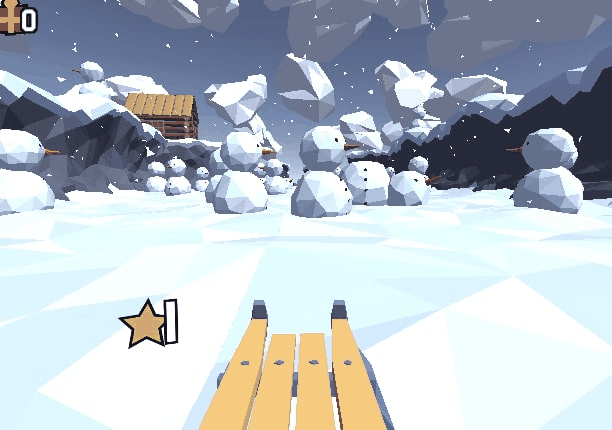
Do not judge the controls from a run that began while the game was still loading or showing its title screen. Confirm a real attempt has started. The control reference gives the first bindings to test and explains why alternate keys need checking in the loaded build.
🔎 Different symptoms point to different causes
| Symptom | First distinction | Guide |
|---|---|---|
| Nothing opens after Play | Is the page reporting a connection restriction or just waiting? | Loading help |
| Game opens but ignores arrows | Is the active focus inside the game? | Input checks |
| Game runs in jerks | Is the device busy even outside the game? | Performance checks |
| Graphics API error | Does this device and browser provide the graphics support the game requires? | Compatibility checks |
🏫 Managed devices have a separate set of rules
A school-managed Chromebook may restrict game pages, embedded content, graphics features or browser settings. The phrase Snow Rider 3D unblocked does not override those controls. If the connection says access is restricted, use an approved device or connection where playing is allowed.
Installing a new-tab extension or changing system settings is not part of this site’s setup. You do not need an extension to use a browser game that the network permits. Keep the distinction between a technical loading failure and an intentional policy restriction.
💾 Keep progress expectations local
Before changing profiles, use an ordinary reload to check whether your selected sled or gift balance remains. A different profile can present a different storage context, even on the same Chromebook. If you are comparing two pages, confirm they load the same game build before expecting identical progress.
The save guide explains those boundaries. For a larger viewing area, use the existing player’s Full screen control instead of opening several copies at once.